

Blog
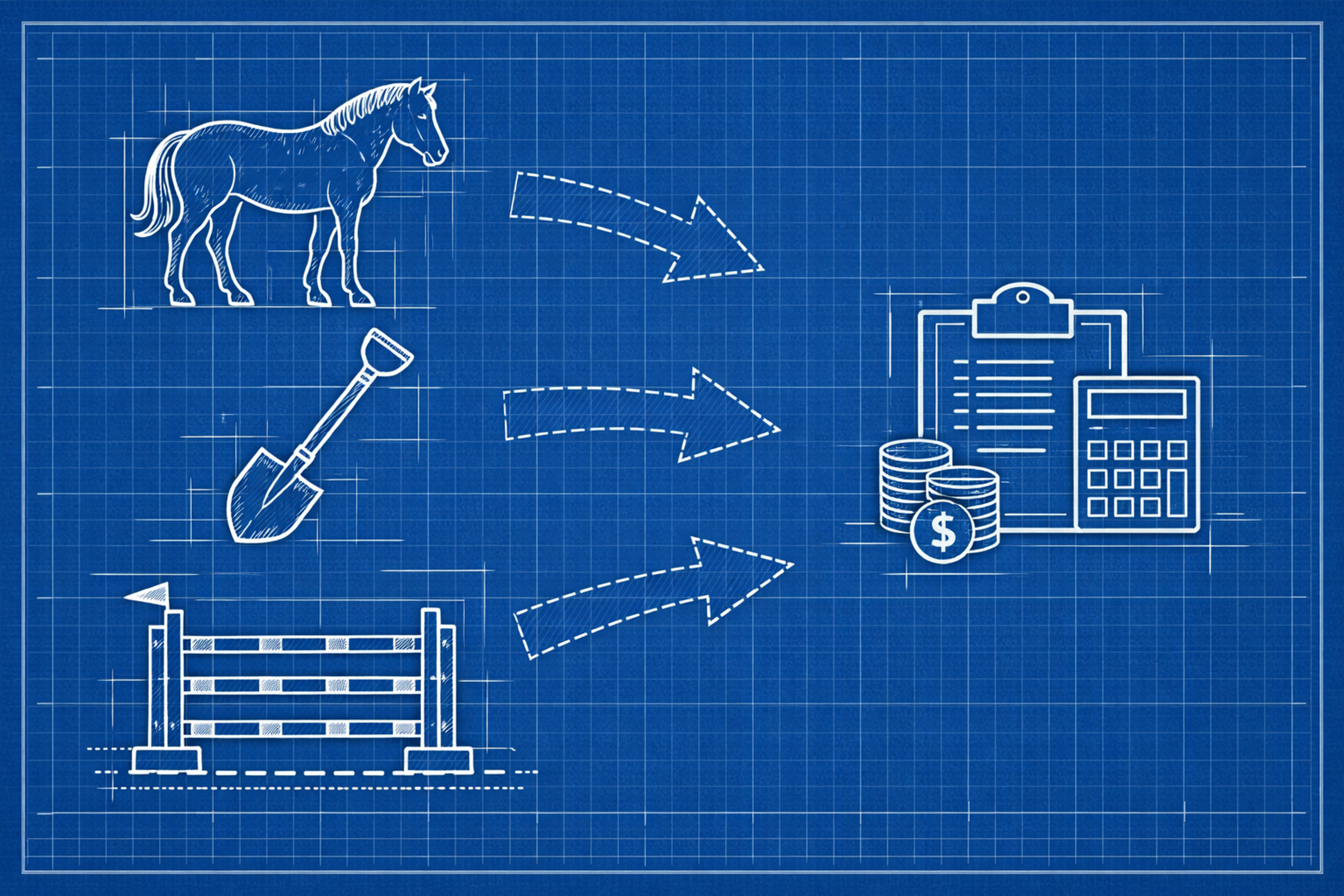
We're excited to announce a powerful new addition to our Xero integration: Tracking Categories Synchronisation. This feature bridges the gap between how you organise your business in At The Yard and how you report on it in Xero, giving you more granular financial insights without any additional manual work.
For those unfamiliar, Xero Tracking Categories are a powerful reporting tool that allows you to categorise transactions by dimensions such as department, location, cost centre, or project. Unlike account codes which determine what a transaction is, tracking categories help you understand where or why revenue was generated. You can read more over at Xero.
For example, a livery yard might want to track income by:
Previously, this level of reporting required manual data entry in Xero after invoices were synced to add the tracking category. No longer.
Many businesses using At The Yard already organise their products, services, and facilities into categories for internal management purposes. Perhaps you categorise your services by discipline (dressage, jumping, hacking) or your products by type (feed, bedding, equipment).
The challenge was that this organisational structure didn't carry through to your accounting. When invoices synced to Xero, all that context was lost. To get meaningful reports, you'd need to manually tag each invoice line item once it's in Xero - tedious work that often didn't get done.
Our new Tracking Categories feature allows you to map your At The Yard categories to Xero tracking options, ensuring every invoice line item arrives in Xero with the correct tracking information attached.
First, you'll need to set up categories in At The Yard to group your products, services, or facilities:
Click "New Category" and give it a meaningful name. We recommend using the helpful naming convention as follows:
Tracking Category: TRACKING CATEGORY NAME : TRACKING OPTION NAME
So for example you might have the following:
Add your Product, Service or Facility to the category you want to receive the Tracking Category Option when they're synced to Xero. (You have to create a category for each item type).
Save your category
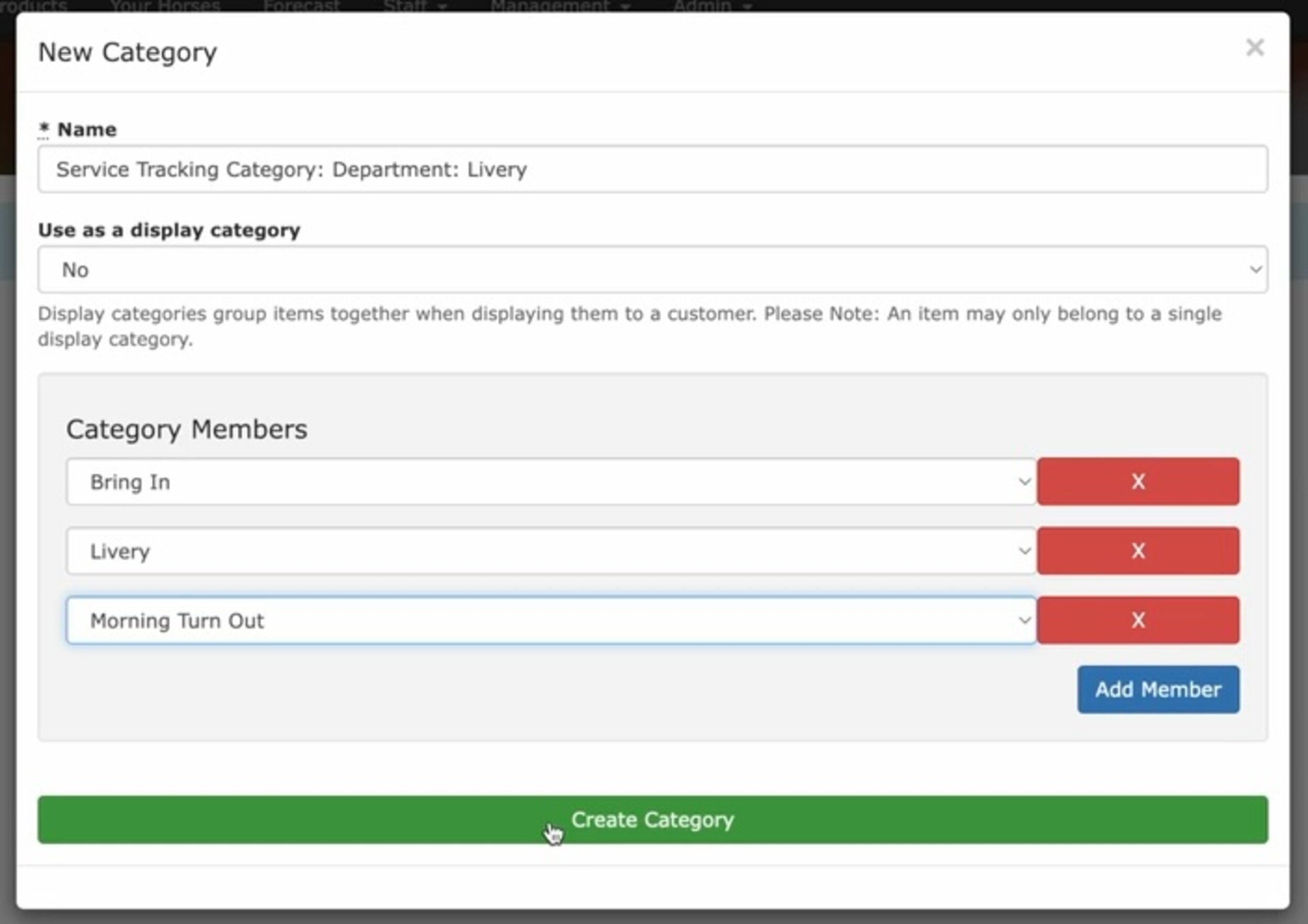
You can create as many categories as you need to reflect how you want to analyse your revenue in Xero.

If you haven't already, set up your tracking categories in Xero. This is done within Xero itself under Settings > Tracking Categories.
Once your categories exist in both systems: 1. Navigate to your Xero integration settings in At The Yard 2. Click on "Tracking Categories" 3. For each At The Yard category, select the corresponding Xero tracking category and option
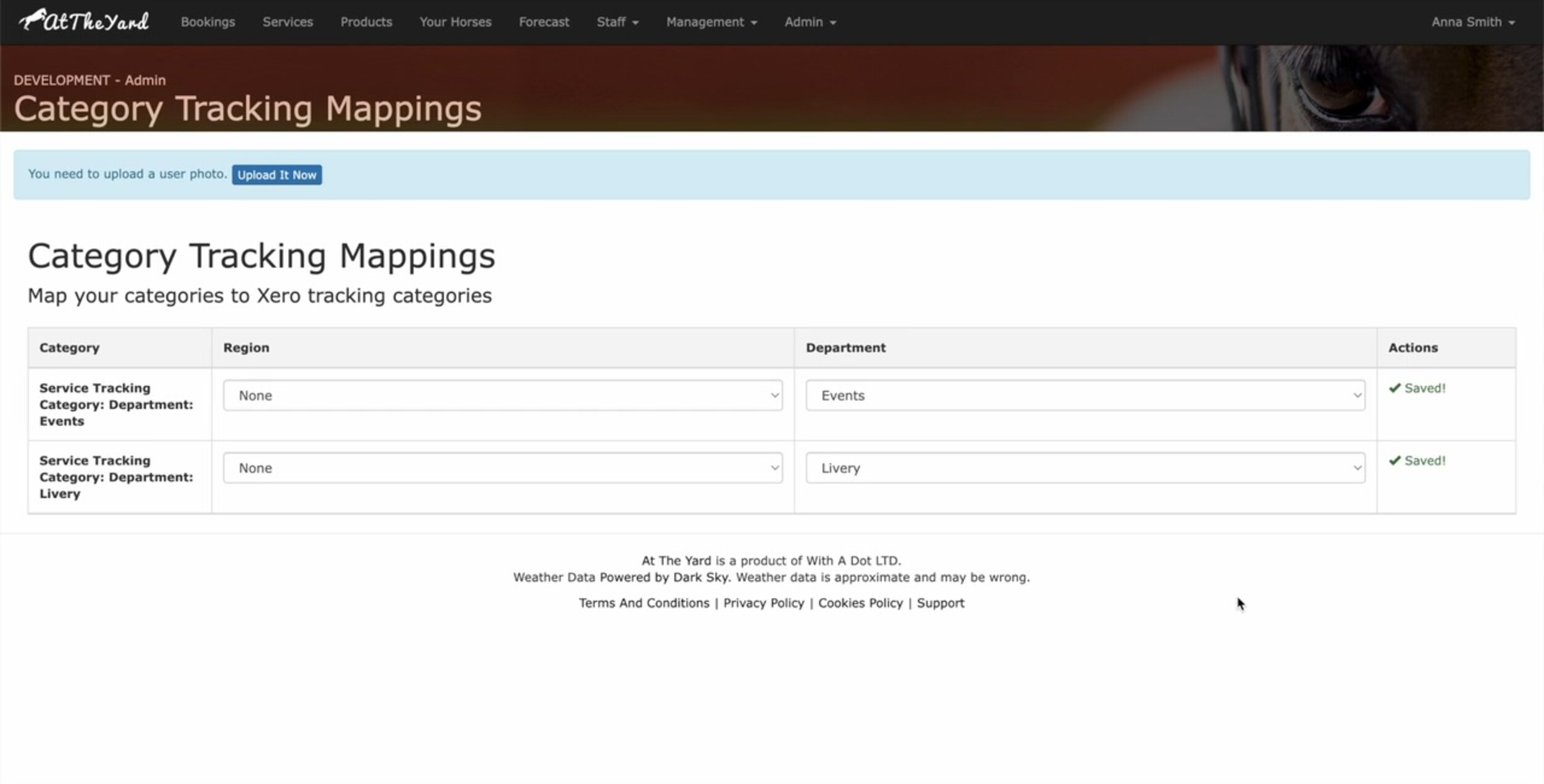
Once configured, the system handles everything automatically. When an invoice containing a categorised product, service, or facility syncs to Xero, the appropriate tracking data is attached to each line item.
There is a requirement to ensure each item only appears in a single tracking option for each tracking category.
To understand this lets look at an example with two Tracking Categories each with multiple Tracking options.
┌─────────────────────────────────────────────────────────────────────┐
│                     XERO TRACKING CATEGORIES                        │
├─────────────────────────────────┬───────────────────────────────────┤
│      Tracking Category:         │      Tracking Category:           │
│          LOCATION               │        BUSINESS AREA              │
├─────────────────────────────────┼───────────────────────────────────┤
│   ┌─────────────────────┐       │   ┌─────────────────────┐         │
│   │     Main Yard       │       │   │       Livery        │         │
│   └─────────────────────┘       │   └─────────────────────┘         │
│   ┌─────────────────────┐       │   ┌─────────────────────┐         │
│   │      DIY Yard       │       │   │      Lessons        │         │
│   └─────────────────────┘       │   └─────────────────────┘         │
│                                 │   ┌─────────────────────┐         │
│                                 │   │       Events        │         │
│                                 │   └─────────────────────┘         │
└─────────────────────────────────┴───────────────────────────────────┘

✓ VALID: "Dressage Lesson" assigned to ONE option per category

     ┌───────────────────┐
     │  Dressage Lesson  │
     └─────────┬─────────┘
               │
     ┌─────────┴─────────┐
     ▼                   ▼
┌─────────┐        ┌──────────┐
│Main Yard│        │ Lessons  │
└─────────┘        └──────────┘
(Location)        (Business Area)


✗ INVALID: Item in multiple options of the SAME tracking category

     ┌───────────────────┐
     │  Dressage Lesson  │
     └─────────┬─────────┘
               │
     ┌─────────┴─────────┐
     ▼                   ▼
┌─────────┐        ┌──────────┐
│Main Yard│        │ DIY Yard │   ← Both are "Location" options!
└─────────┘        └──────────┘
(Location)          (Location)
When multiple At The Yard categories are mapped to the same Xero tracking category, each item (product, service, or facility) can only belong to one of those categories. For example, if you have categories for "Dressage" and "Showjumping" both mapped to a "Discipline" tracking category in Xero, a lesson service cannot be in both—it must belong to one or the other. This ensures each invoice line item receives a single, unambiguous tracking assignment. At The Yard will alert you should this happen in error.
Automated accuracy – Eliminate manual tagging errors and ensure consistent tracking across all your invoices.
Time savings – What previously required manual work after an invoice synced to Xero now happens automatically along with other data.
Better reporting – Unlock the full potential of Xero's reporting capabilities with properly tracked transactions.
Flexibility – Map your existing category structure to Xero's tracking categories without changing how you organise your business.
Discipline-based tracking lets your yard see exactly how much revenue comes from dressage versus showjumping versus cross-country. Understand which disciplines are driving your business and where to focus your investment.
Mixed-use facilities can separate income streams—seeing at a glance how much revenue comes from livery versus lessons versus events versus retail.
Instructor performance tracking becomes straightforward for yards with multiple freelance or employed instructors, letting you see revenue generated by each without manual spreadsheet work.
Arena and facility income can be tracked separately, showing you which facilities generate the most bookings and whether that new all-weather arena is paying for itself.
If you're already using our Xero integration, the Tracking Categories feature is available now. Start by creating categories in At The Yard that reflect how you want to analyse your revenue, then head to your Xero integration settings to map them.
If you haven't yet connected At The Yard to Xero, there's never been a better time. Our integration handles invoices, payments, contacts, and now tracking categories—keeping your financial records accurate and up-to-date without the administrative burden.
This release represents our ongoing commitment to making financial management effortless for equestrian businesses. By connecting the operational tools you use every day with professional accounting software, we're helping you spend less time on admin and more time doing what you love.
Have questions about setting up Tracking Categories? Our support team is here to help. Get in touch and we'll guide you through the configuration process.