

Blog
Running a yard requires a team of people to make it a success. This means you'll likely be hiring regular staff, bringing in helpers or using freelancers to help with the day to day running of the yard.
To help make life easier we’ve introduced tools into At The Yard to help you and your staff keep track of the hours they work. This makes it quicker and easier to pay them (which is great for both you and them) whilst ensuring the amounts are accurate and fair.
In the rest of this article we’re going to take a look at how to use this new feature.
Contents
You can access the staff work recording area by clicking on the Staff Menu and clicking on Record Work. You’ll be greeted with the page shown below. You can enter your worked hours and review your previous hours.
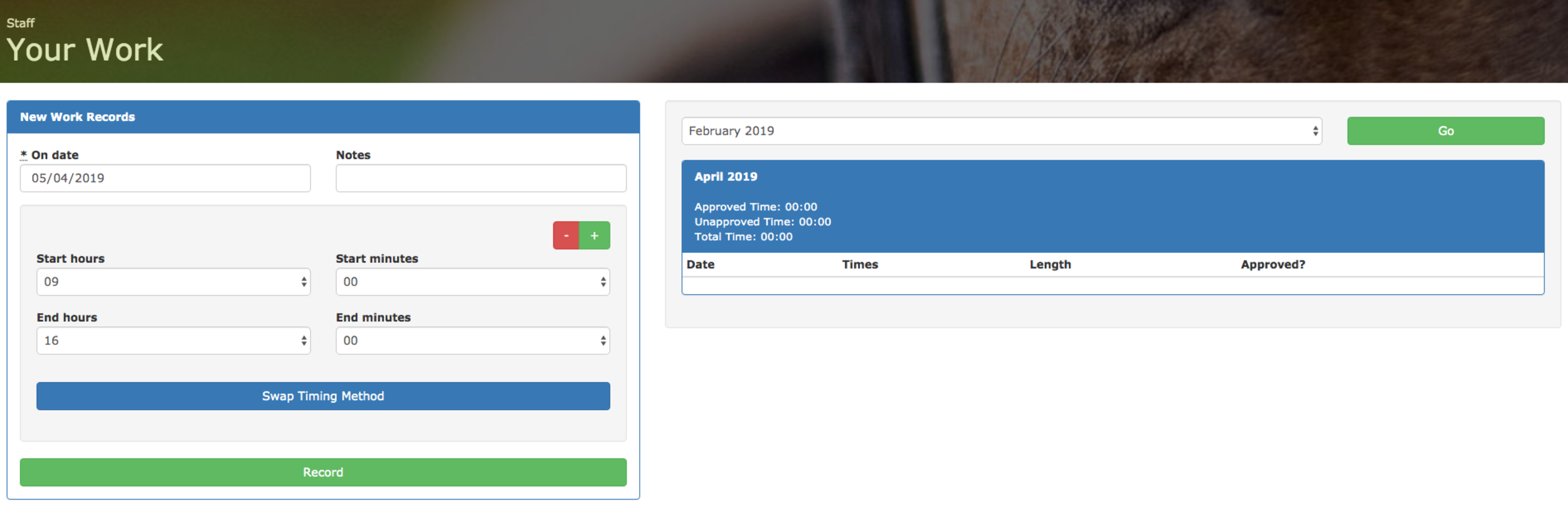
The left hand side of the screen is dedicated to entering your hours. Staff can do this at the end of the day and can enter multiple times at once by clicking the green + button (this is great if they take a break for lunch etc). When they’ve entered all their work hours for the day all they need to do is click Record and the hours will be saved.
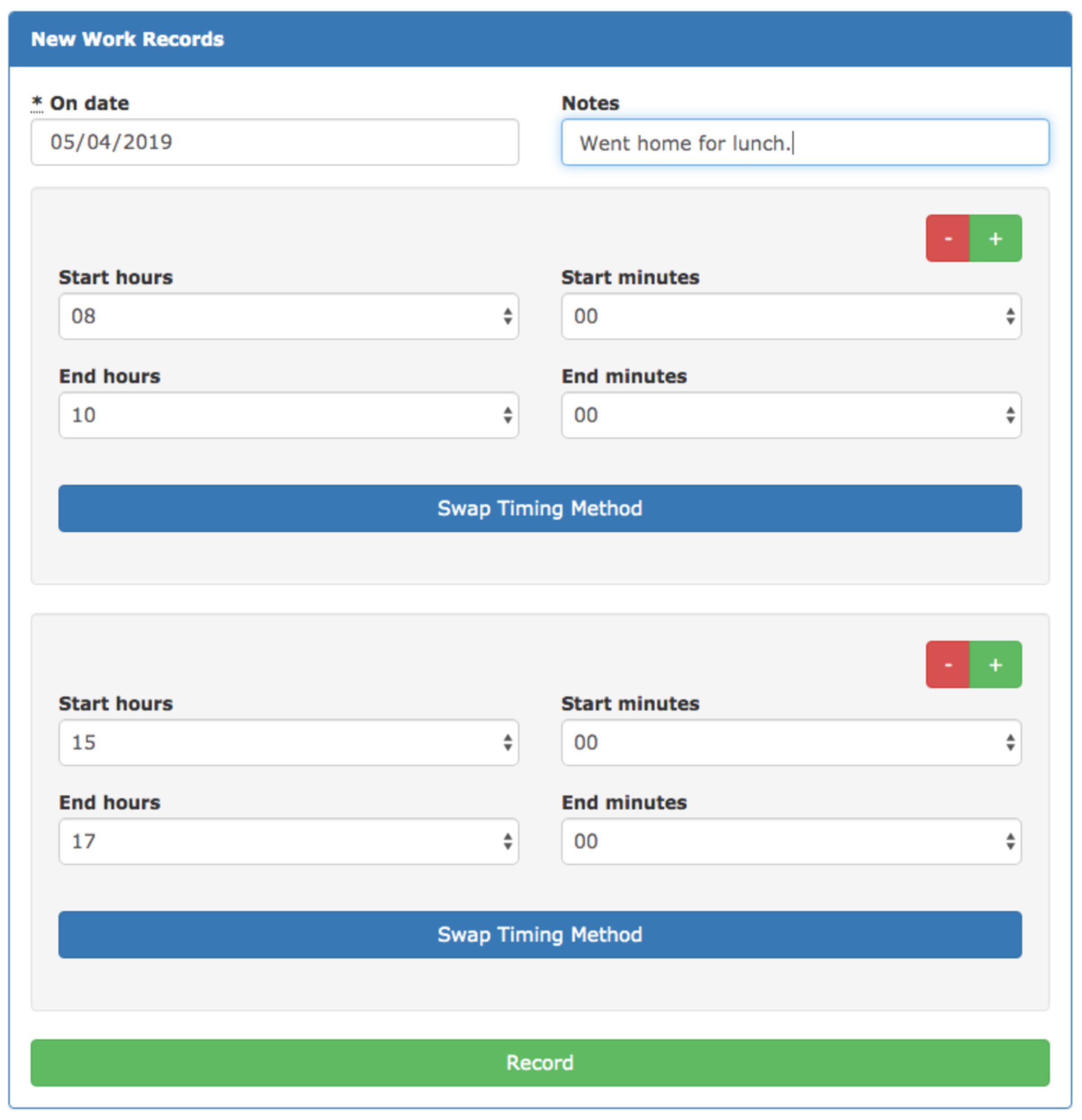
Once you’ve entered your worked hours you’ll see them on the right hand side of the screen. There is also a label to let you know if it’s been approved by your yard manager or not. When they approve the hours this will be updated.
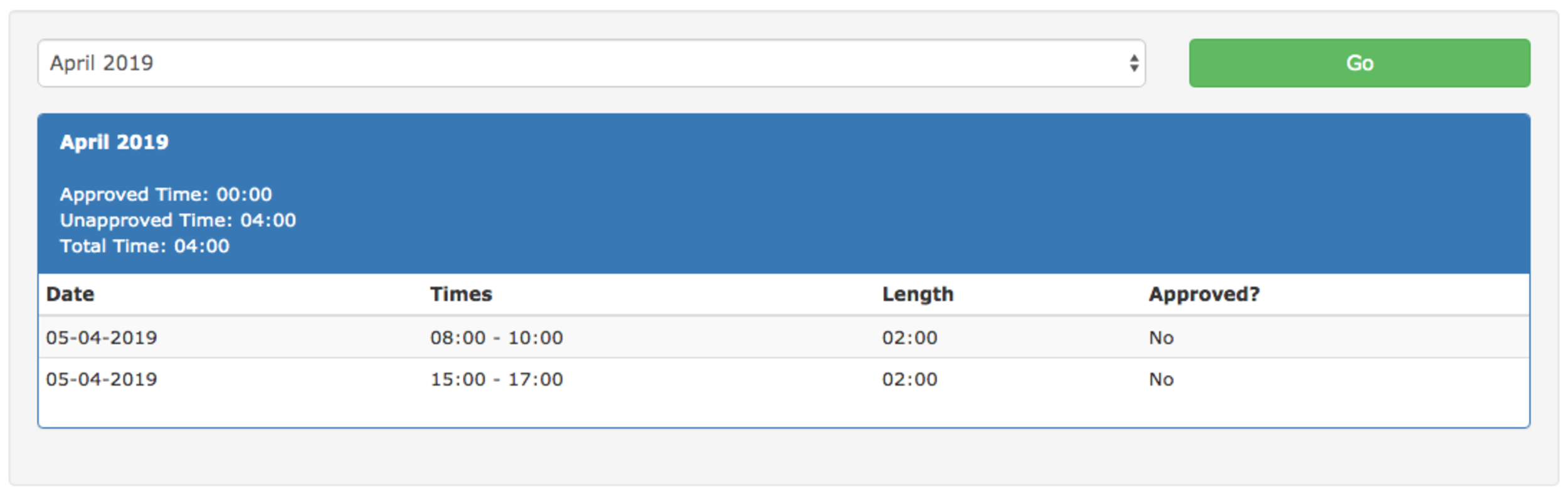
In the menu click on Admin and Edit Staff Rates. This will bring you to the Staff Pay Rates section where you can review your current staff pay rates and create new ones. The rate set at the time a staff member records their hours will be used to automatically calculate the total pay owed to them. Because of this it’s important to set up your staff with the correct pay rate before they record any hours.

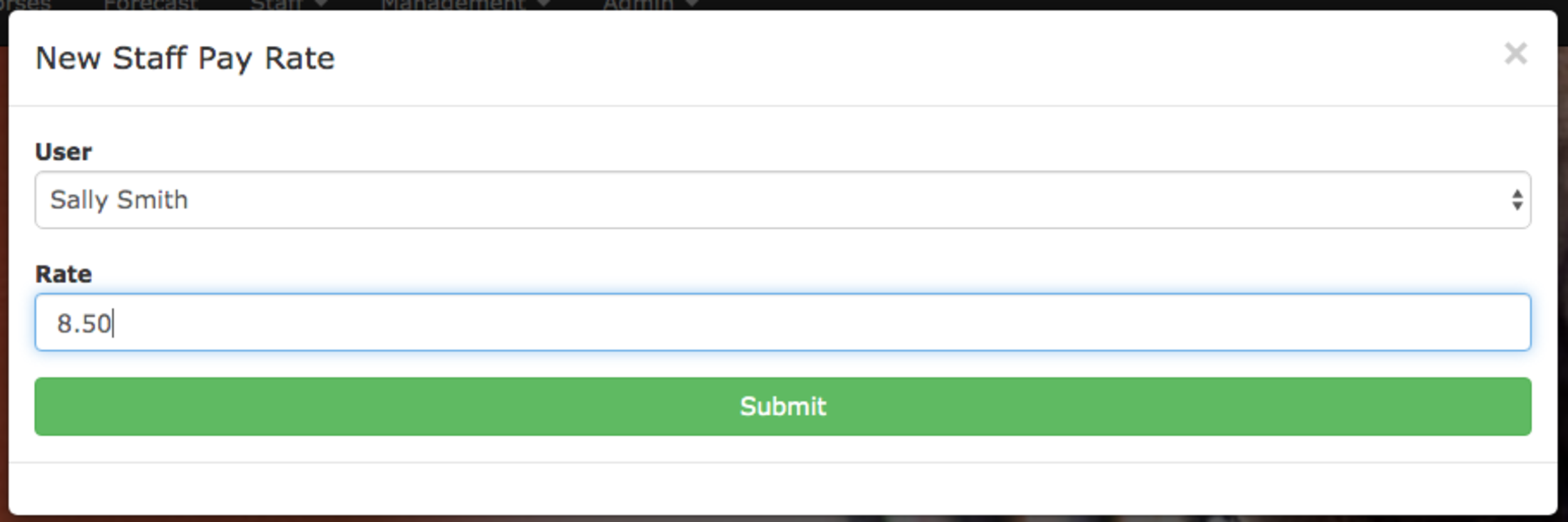
To create a new Staff Pay Rate click on New Staff Pay Rate and it’ll open a new dialog. In the dialog you can choose the staff member and set their rate. When you’re ready click Submit and it’ll be ready to go.
Click on Admin and Review Staff Hours. This will bring you to the staff hours review page. Here you can record additional hours on behalf of staff members (useful if they’ve forgotten to enter any). You can also see all the records staff have recorded and approve them. Finally you can create time sheets (which can be printed). The timesheet will show all the hours worked and the total pay owed to the staff member.
This is the same process as listed above for a staff member. The only difference is that you need to select the member of staff it’s for. If you need to make multiple records just enter one, click Record and repeat.
On the right hand side of the screen you can see all the recorded hours for the month (you can swap months by choosing a different month from the drop down box and clicking go).
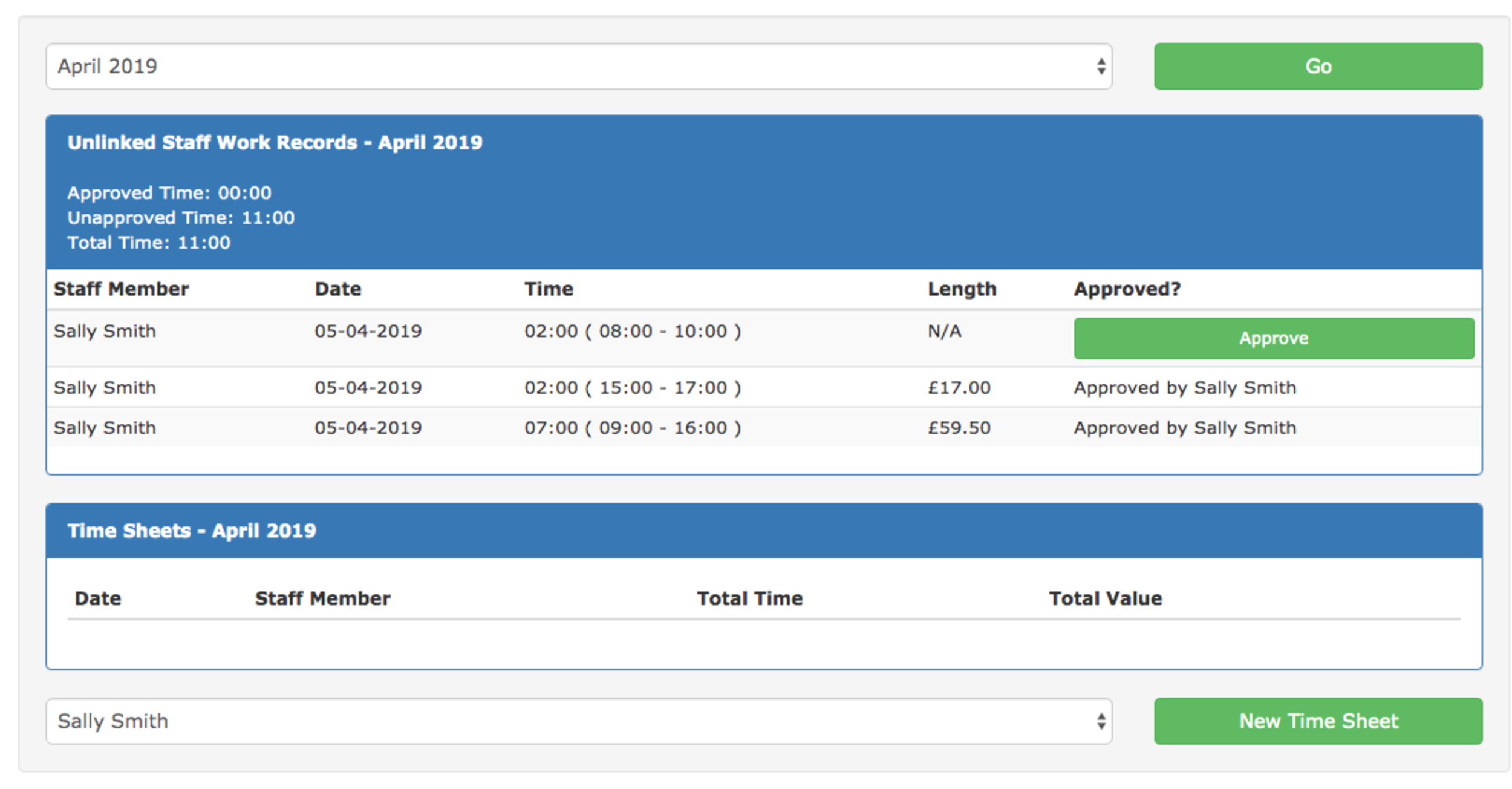
To approve a record click Approve. It’ll swap to ‘Approve by Your Name’. Once approved the record will be eligible to be added to a time sheet.
To begin the process of making a time sheet for a user select the users name and click on New Time Sheet.
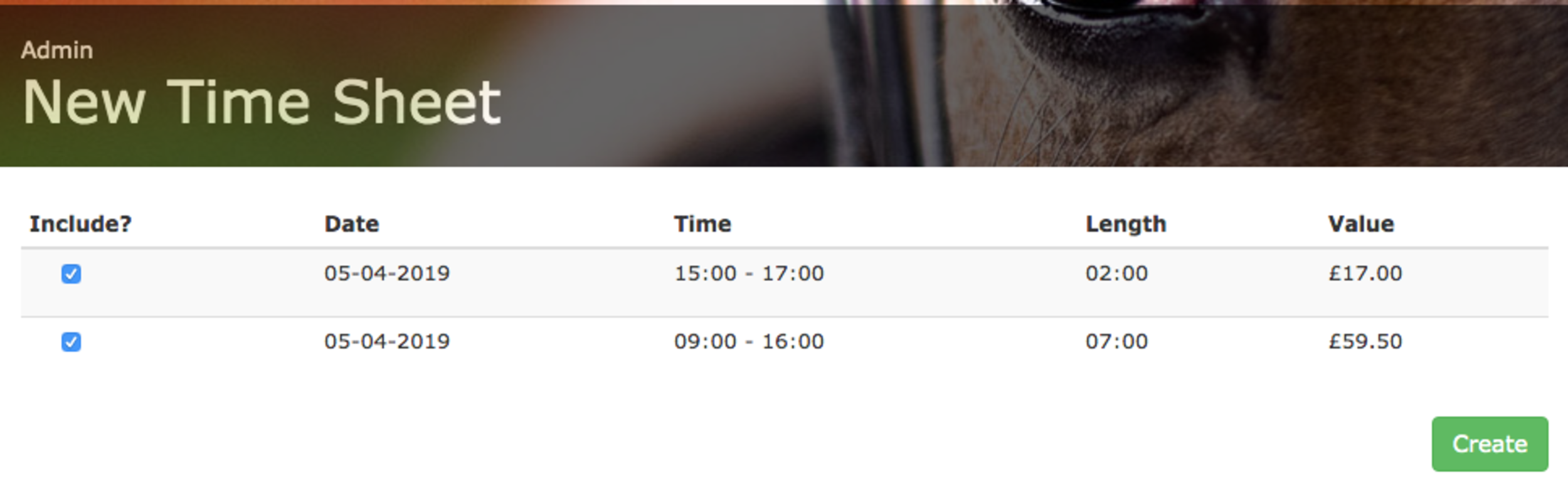
You’ll see all the staff work records that have been approved and are not yet linked to a time sheet. If you want to exclude a record from this time sheet you can untick the box under Include?. Once you’ve finished selecting the staff work records you wish to use click on Create.
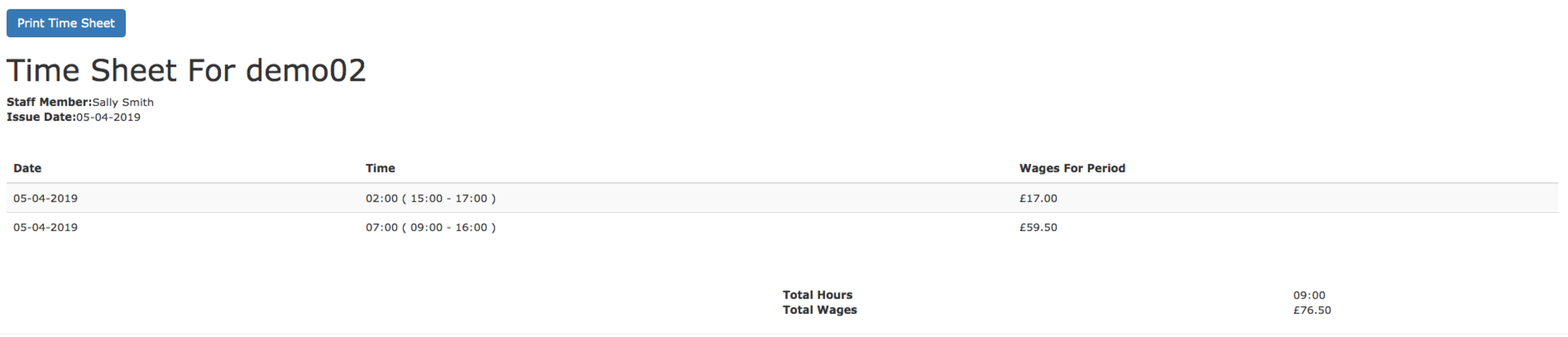
This will create the time sheet and take you back to the review page. You’ll see a new time sheet has been added. For each time sheet you can see the total time worked and the pay owed to the staff member.

If you click on Show it’ll bring up the time sheet and show you all the details. Please Note: This is only a timesheet and does not act as a Pay Slip. If you need to issue a Pay Slip you’ll need to use appropriate tools for that.
This new addition will give you the tools you and your staff need to easily and quickly keep track of the hours worked. It makes it easy to calculate the pay owed and reduces errors for both parties.
P.S. If you've stumbled across this page and have your own livery yard we'd love to show you more. This was one of our #FeatureFocusFriday posts where we highlight a feature in At The Yard but there’s much more to see. Please visit our contact page and get in touch to find out more.
A few weeks ago we added the ability to share horses; between liveries, to the whole yard or for a syndicate group of owners.
All the sharing options are setup in the management horse view. To get to this view go to the menu and click Management -> Yard Horses and click on Show on the horse you’re sharing.
Scroll down and find the Add Share button to set it up. On this page you’ll have all the sharing options in the system with which you can configure your shares. The rest of this post will look at the different sharing scenarios available to you.
This scenario is used when you have a livery on your yard who has a private sharer. You can set the sharer an account up and then share your liveries horse to the new sharers account. The sharer will then be able to book lessons, purchase products etc. with/for that horse.
This scenario can be used for yards which offer yard horses as part of a membership to the yard. Once setup every user at the yard can access the shared horse to book facilities (the school) or order services (a lesson) with/for that horse.
Syndicate horses are horses that are owned by a group of users. A key element of these horses is that everything involved in the horses upkeep must be billed to the horse and then split amongst the syndicate owners. When it comes to billing time At The Yard will automatically split the bill amongst the syndicates. Take a look at the video below to see how.
P.S. If you've stumbled across this page and have your own livery yard we'd love to show you more. At The Yard is the game changing equine livery yard management app that we promise will save you time and money. Please visit our contact page and get in touch.
Following on with our tradition of being late with #FeatureFocusFriday today (a Saturday 😂) we’re looking at how to change the size of the logo used on your invoices. It’s really quick and easy but can have a significant impact on the look of your invoices.
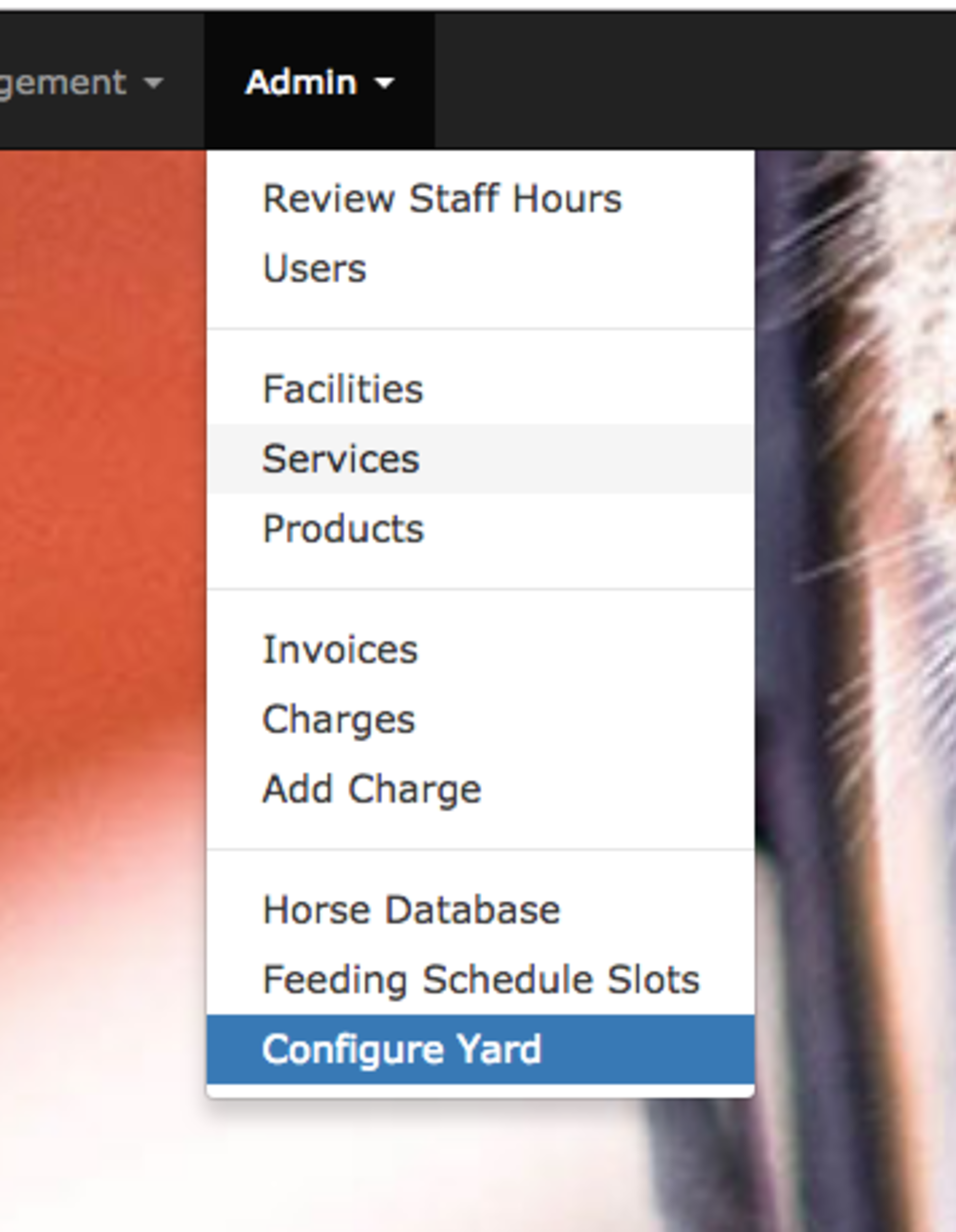
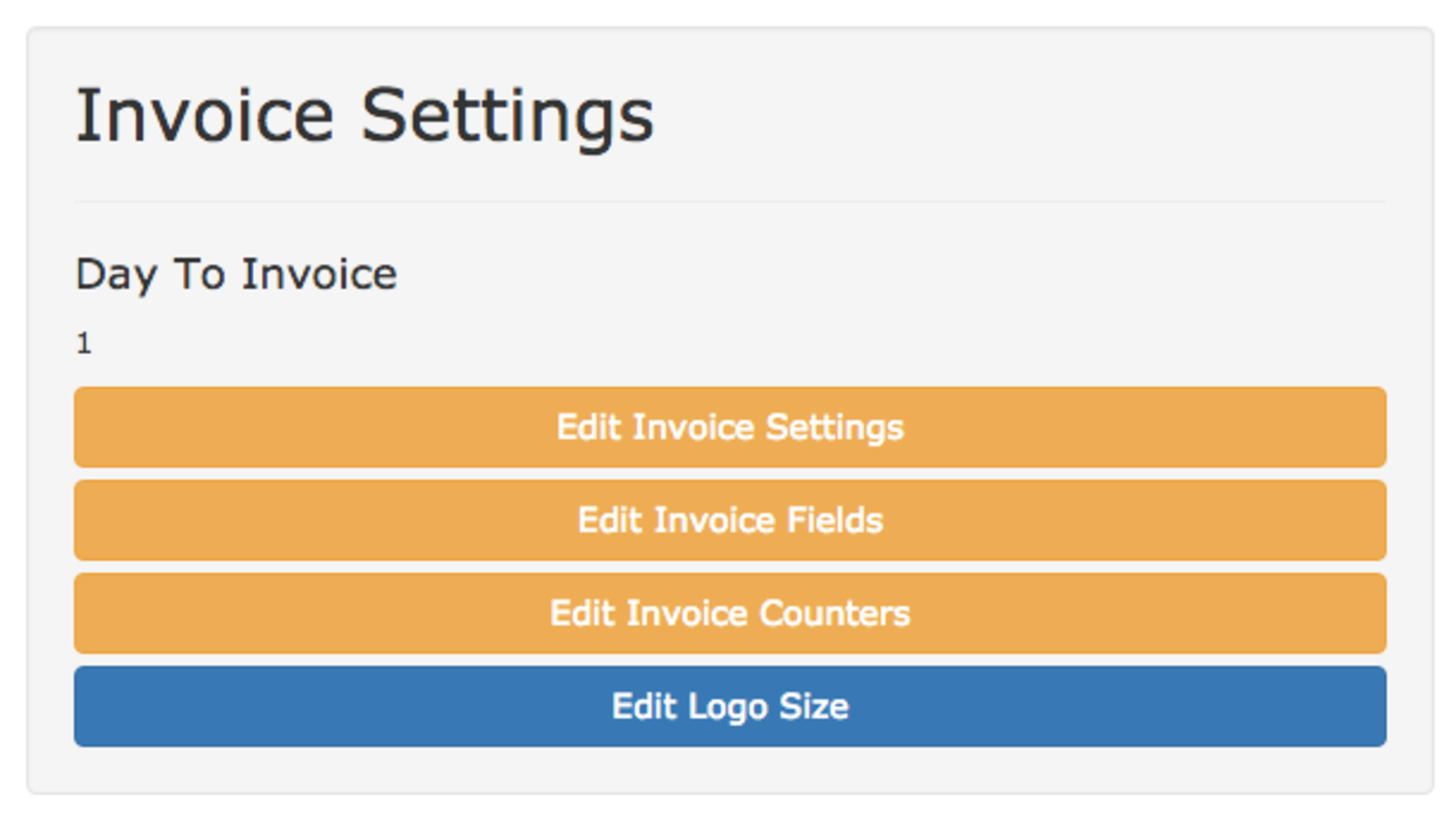
Move the slider back and forth to change the size of the logo. When you’re happy with it’s size click update.

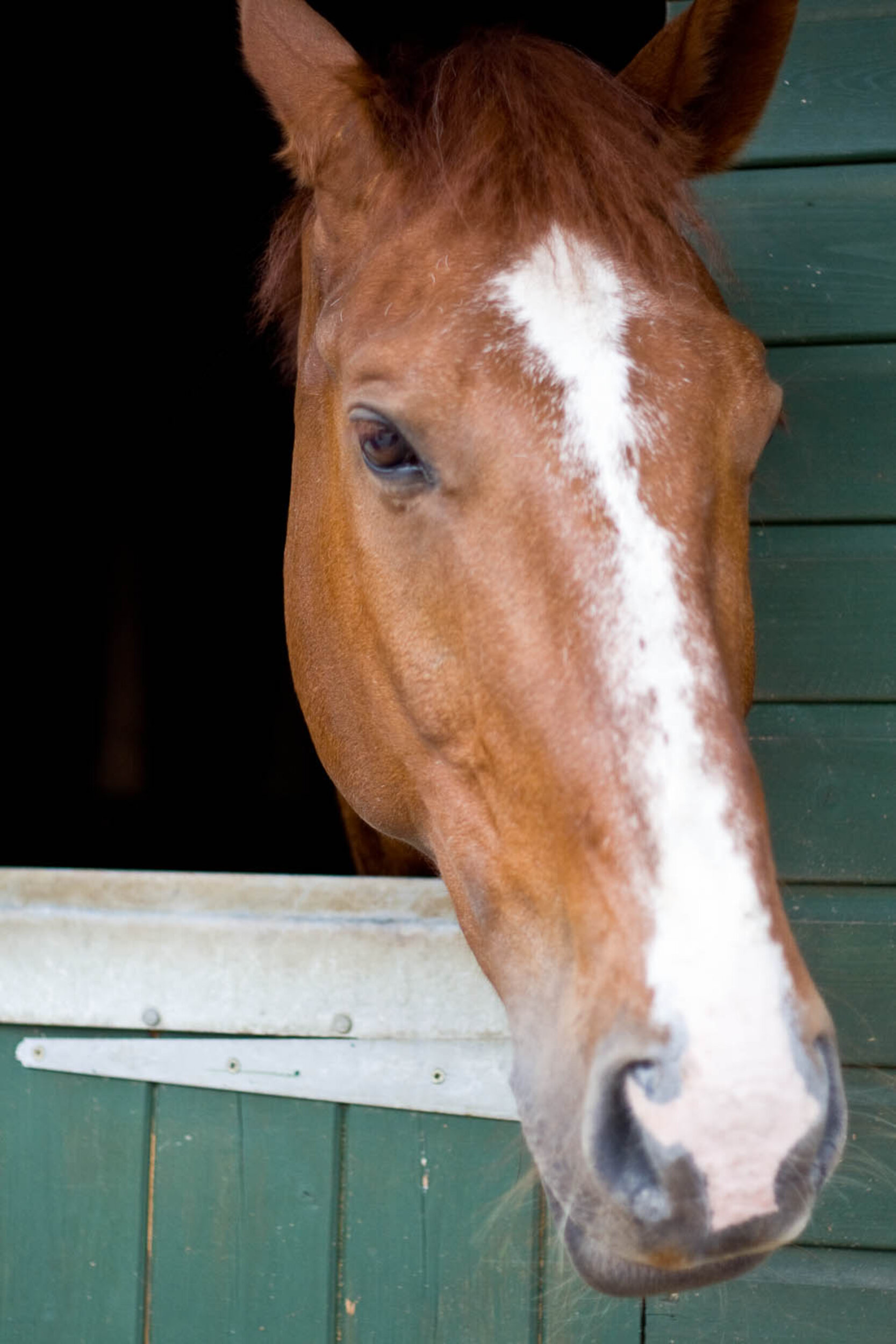
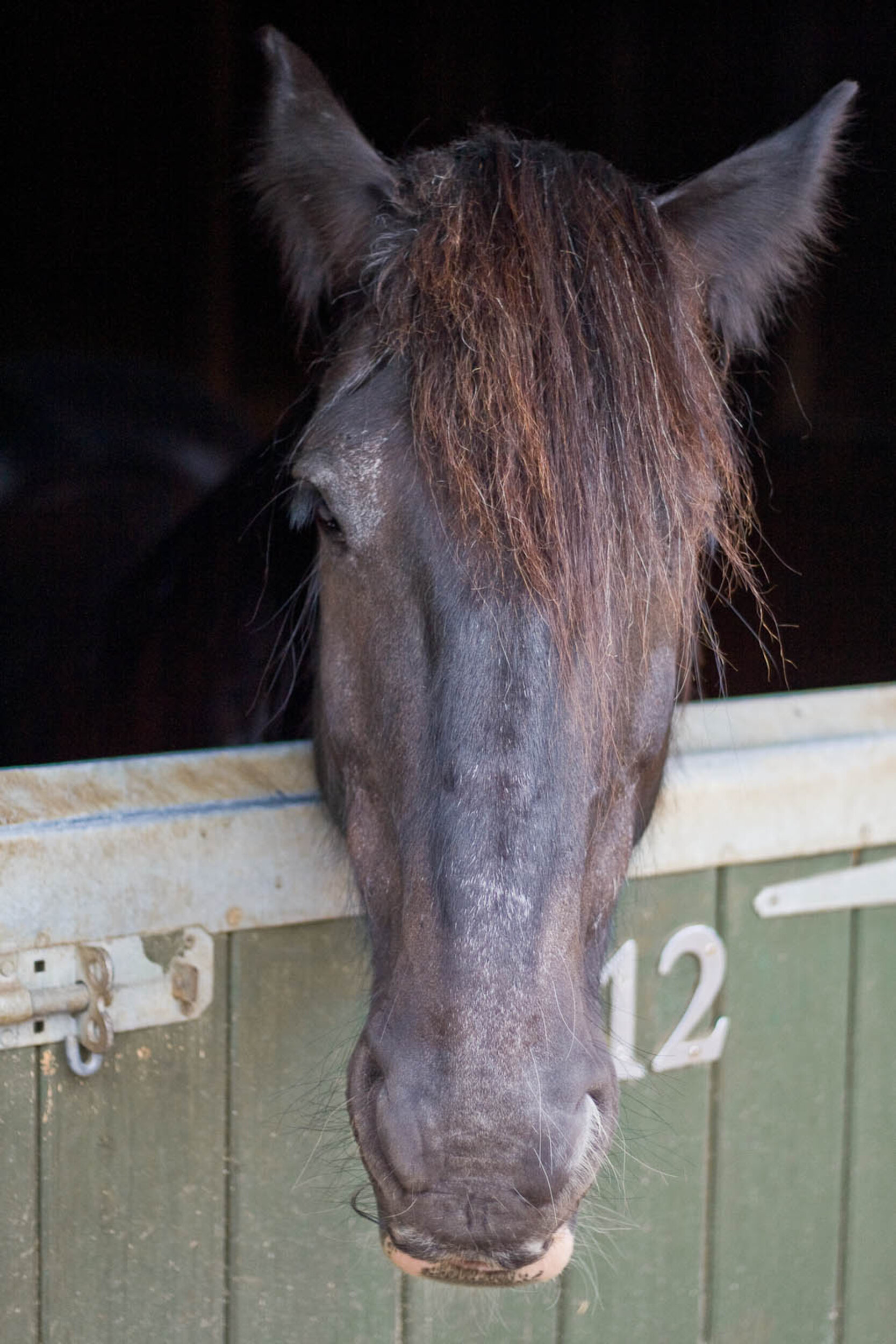
We’ve been hard at work for the last 6+ weeks working on introducing the ability to share horses between your customers in At The Yard. This latest feature represents significant changes throughout the system from subscriptions through to invoicing and much more. It’s moved us away from the one horse - one user paradigm we’ve had up to now.
We’re excited at the new opportunities this change of paradigm brings to our customers, both now and into the future with features coming down the pipeline.
Lets look at a few of the new scenarios you can now manage with At The Yard.
A common arrangement is for a livery to have one or more sharers for their horse. These sharers are generally responsible for feeding, grooming, mucking out and everything else that the horse might need on their days.
Whilst looking after the horse it’s likely that there will be costs for feeds or other supplies. The sharers can now be given their own account in At The Yard and be given permission to record these against the owners account. This will save further time for owners and the yard staff alike whilst further reducing the chance for charges to be forgotten or missed.
By having their own account they can also now book facilities and order services in their own right and receive invoices for them directly. Again, further simplifying the admin burden for both owners and the yard manager.
If your yard keeps a collection of horses that are made available to liveries, members or regular customers you can now represent this within At The Yard.
Once setup the horses will then appear to your users when booking facilities, lessons, cross county courses etc and allow the costs of these activities to be billed to their individual user accounts.
We hope this addition will allow yards to explore additional business models and revenue streams and offer new and exciting services to their customers.
Syndicate horses are owned by a collection of owners who both benefit from the horse as a group and cover the cost for the horse as a group.
With this latest update you can now support these arrangements in At The Yard. You can record the various stakes different members have in a horse and make the horse available to all the syndicate members.
Much like with the shared horses, described above, costs incurred whilst the yard or a syndicate member is looking after the horse can be billed directly to the horse’s own account.
And again, by having their own account they can also book facilities, order services that are for their individual sole benefit and have them billed to their own individual account and receive invoices for them directly.
Finally when it comes to invoicing, At The Yard will automatically calculate each member of the syndicate’s individual portion of the invoice they owe, based on the stake they have in the horse - whilst still showing them the overall invoice for the horse so they can see all the costs involved.
As always, all subscribers to At The Yard have already received this update. Throughout the system these options are now available. Over the coming week we’ll be releasing a collection of guides on how to setup each of the scenarios and also how to complete invoicing for syndicate horses. In the meantime if you’re looking to get this setup ASAP get in touch and we’d be happy to arrange a support call to guide you through the setup process.
Finally if you've stumbled across this page and have your own livery yard we'd love to show you more of At The Yard. Please visit our contact page and get in touch.
P.S. We know we missed this weeks #featurefocusfriday - we were aiming to have this ready for Friday but the final testing setup meant we slightly missed it. We’ll be back next week with another #featurefocusfriday.
Every #FeatureFocusFriday we focus on a particular feature in At The Yard, exploring how you can use it for your yard. This week we’re looking at the Yard Events feature.
Every day there is something going on, from vets and dentists visits all the way through to construction work that might be taking place. Keeping everyone informed is essential for keeping a harmonious and safe environment for everyone (both horses and people).
Making a New Event
Any user can make an event. In this example, we are going to make an event for the entire yard as a staff member. Step 1 is going to the “Staff” menu and clicking on ‘Yard Events’.
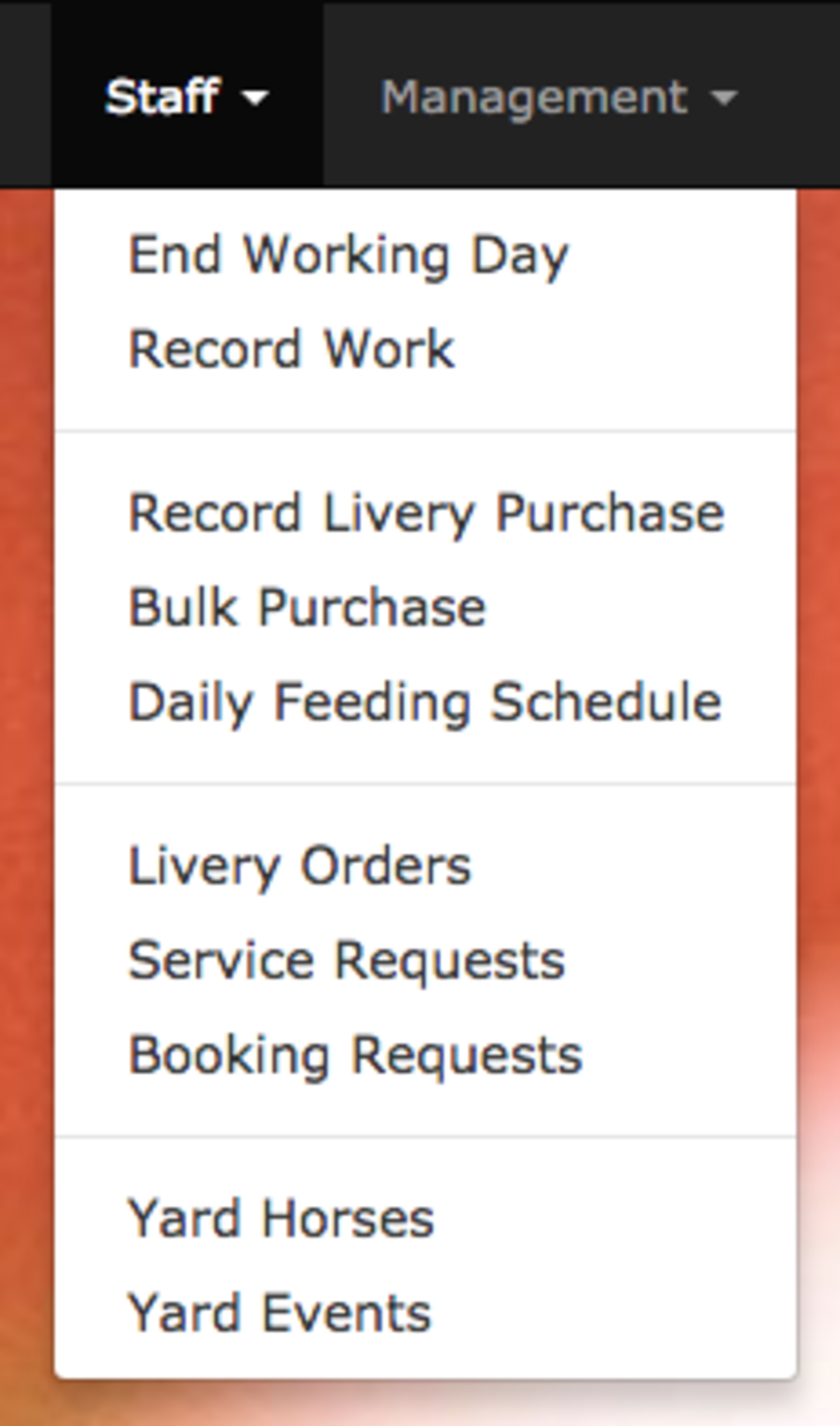
And then click on ‘New Event’.
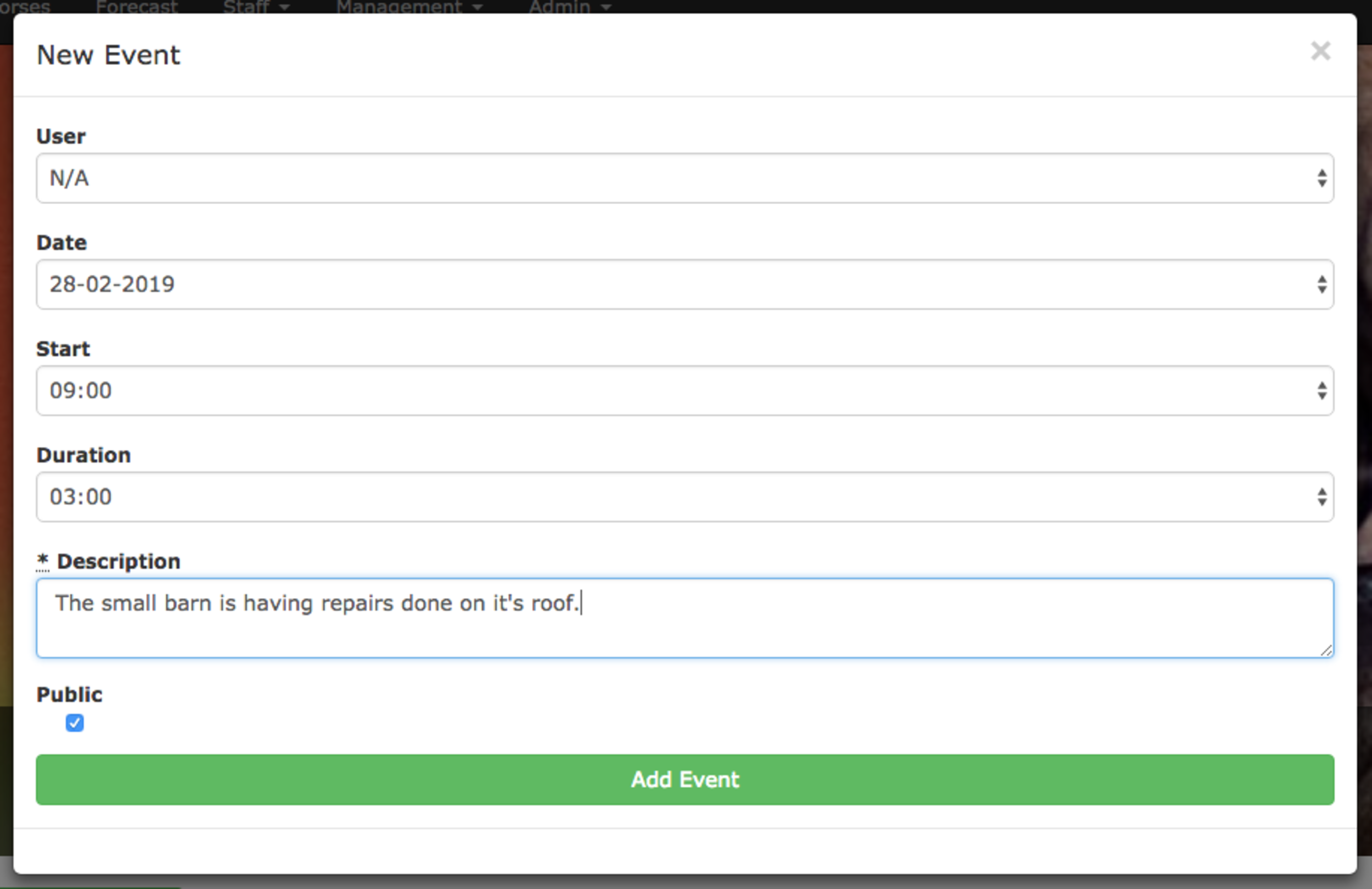
This brings up the ‘Yard Event’ page which allows you to enter the details of the event; time, date, duration, description and user to which it applies (if applicable). Finally it has the option to tick the ‘Public’ button. When ticked it’ll make this event visible to every single user at your yard - great for when something is happening yard wide.
And that’s all there is to it. The event will now be visible to staff and liveries alike and everyone will be kept informed of the construction work (or whatever’s happening at your yard).
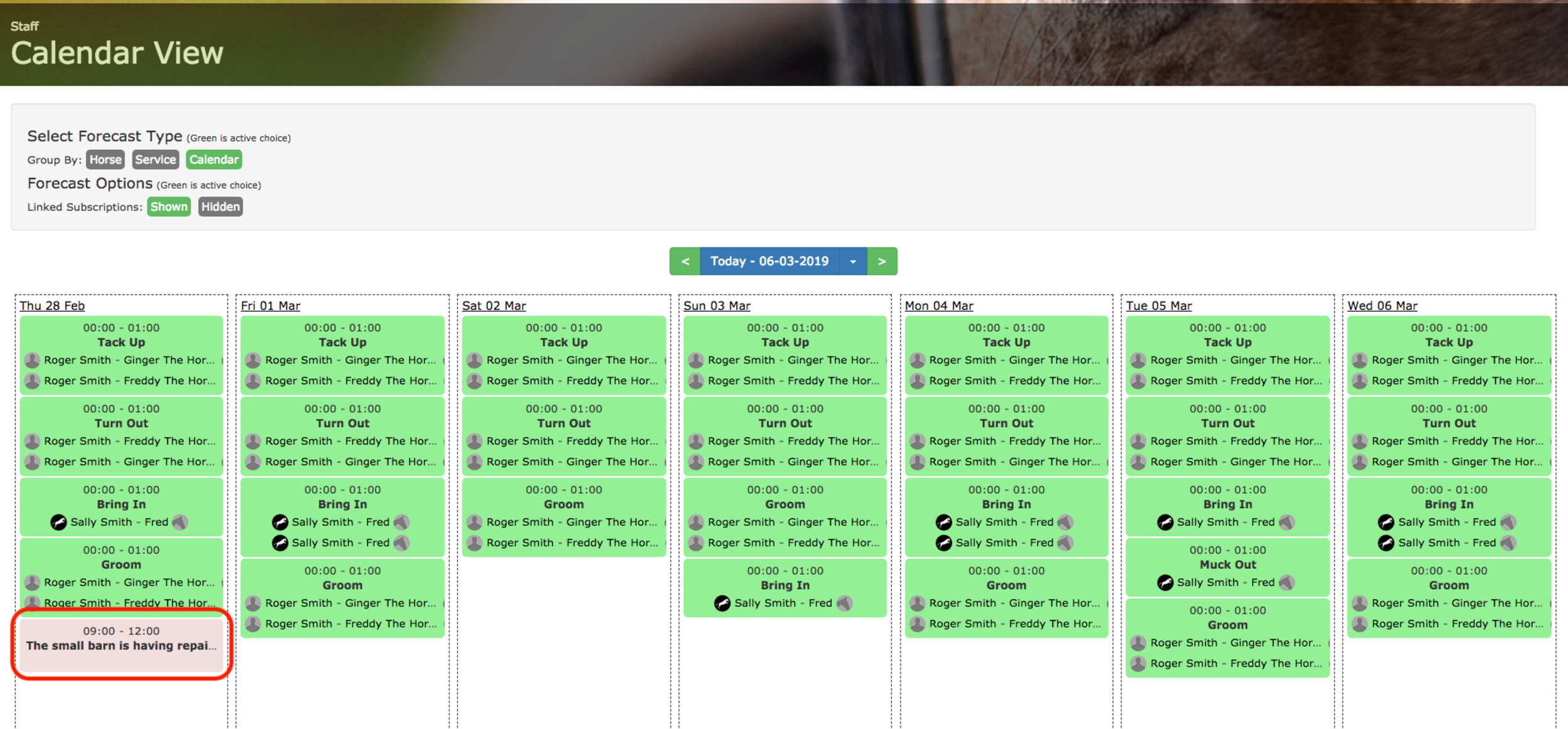
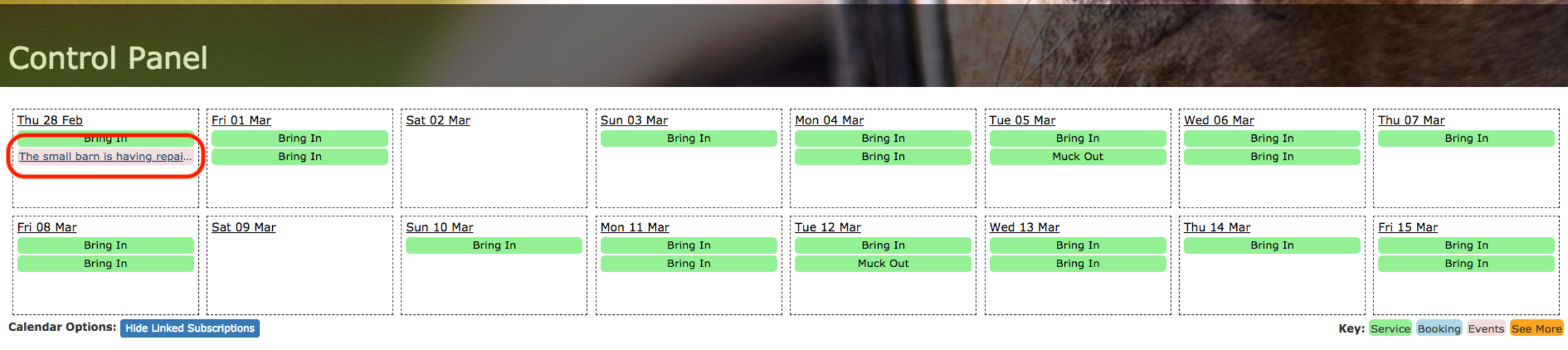
Like all features in At The Yard the aim of the events system is to make things quick, easy and simple. In this case it’s getting information to your liveries in a timely and visible fashion, helping keep livery satisfaction high whilst saving you time.
See you next Friday!